
Microsoft 365 is the operational backbone for countless organizations, yet a dangerous assumption persists: that the default settings provide adequate security. While Microsoft has invested heavily in building a powerful security stack, many of its most impactful features remain dormant in customer tenants. Research indicates that a staggering **44% of Microsoft 365 licenses are either underutilized or oversized**, meaning businesses are paying for advanced protection they never activate.
This “implementation gap”—the distance between available security controls and what is actually enforced—creates significant, unnecessary risk. It’s not a technology failure; it’s a governance and architecture gap. Organizations often layer on redundant third-party tools, increasing complexity and cost, while the native capabilities they already own lie untouched. The result is a weaker security posture and wasted investment.
This article reveals the five most commonly underutilized security features in Microsoft 365. Activating and properly configuring these tools can dramatically harden your environment against modern threats, streamline operations, and maximize the return on your existing investment.
1. Advanced Identity and Access Management: Beyond Basic MFA
Identity is the control plane for Microsoft 365. While most organizations recognize the importance of Multi-Factor Authentication (MFA), many stop at enabling it with basic methods like SMS, which are vulnerable to SIM-swapping attacks. True identity security requires a more sophisticated, layered approach that leverages the full power of Microsoft Entra ID.
Blocking Legacy Authentication
One of the most critical yet frequently overlooked security settings is the blocking of legacy authentication protocols like POP3, IMAP, and SMTP AUTH. These older protocols **do not support MFA**, creating a gaping hole in your defenses. Attackers specifically target these protocols with password-spraying and brute-force attacks because they know it allows them to bypass MFA entirely. Leaving legacy authentication enabled is like locking your front door but leaving a back window wide open. Microsoft is moving to permanently disable Basic Auth, but organizations must proactively block it now via Conditional Access policies to eliminate this common attack vector.
Risk-Based Conditional Access Policies
Conditional Access is the “if-then” engine of Microsoft’s Zero Trust architecture, but many businesses with the necessary premium licenses fail to use it to its full potential. Instead of applying a one-size-fits-all security policy, Conditional Access allows you to create granular rules that adapt to real-time risk signals. These signals include user behavior, location, device health, application, and real-time threat intelligence from Microsoft’s trillions of daily signals.
For example, you can configure policies to **automatically block sign-ins from anonymous IP addresses**, require phishing-resistant MFA for users accessing sensitive applications, or enforce limited session controls for users on unmanaged devices. Microsoft Entra ID Protection feeds user and sign-in risk levels into these policies, detecting anomalies like **atypical travel, leaked credentials, or sign-ins from infected devices**. This dynamic approach ensures that security controls are applied precisely when and where they are needed, strengthening security without creating unnecessary friction for users. It is crucial to note that legacy risk policies in ID Protection are retiring on **October 1, 2026**, making migration to Conditional Access a priority.
Privileged Identity Management (PIM)
The principle of least privilege is a cornerstone of cybersecurity, yet many organizations still assign permanent, high-privilege roles like Global Administrator to IT staff. This practice is incredibly risky; a single compromised admin account can lead to a full tenant takeover. Microsoft Purview Privileged Identity Management (PIM) solves this problem by enabling **Just-In-Time (JIT) and Just-Enough-Access (JEA)**.
With PIM, you can make users eligible for roles, requiring them to go through an activation process—which can include requiring justification or approval—to elevate their permissions for a limited time. This drastically reduces the window of opportunity for attackers. According to the 2025 CoreView State of Microsoft 365 Security Report, organizations that deploy PIM experience **64% fewer security incidents**. Instead of permanent admin rights, PIM provides temporary, auditable access, ensuring that powerful permissions are only used when absolutely necessary.
2. Microsoft Purview: Unlocking True Data Loss Prevention (DLP)
Data Loss Prevention (DLP) and information protection capabilities are widely licensed but notoriously underutilized. Many organizations either find the configuration complex or mistakenly believe these tools are only for large enterprises. Consequently, they invest in standalone DLP platforms while the powerful, integrated features within Microsoft Purview remain inactive.
Beyond Default Policies
A common misconception is that Microsoft 365 automatically prevents data loss. In reality, **DLP policies are not configured by default** and must be manually set up. Microsoft Purview DLP offers highly granular controls that allow you to identify, monitor, and protect sensitive information across Exchange Online, SharePoint, OneDrive, and Teams. You can create policies to detect specific sensitive information types, such as credit card numbers or national IDs, and define actions like blocking sharing, warning users, or requiring override justification. These policies can even extend to endpoints, preventing users from copying sensitive data to USB drives or printing it from unmanaged devices.
The Power of Sensitivity Labels
Microsoft Purview Information Protection allows you to go beyond simple location-based protection with **sensitivity labels**. These labels classify and protect data no matter where it lives or travels. When a user applies a label like “Confidential” to a document, that label can enforce protection policies, such as **encryption that restricts access to specific users and visual markings like watermarks**. Because the protection is embedded in the document’s metadata, it persists even if the file is emailed outside the organization or saved to a personal cloud drive. For organizations like Ernst & Young, sensitivity labels are crucial for safeguarding their global data estate with automatic classification and rights management.
The Integrated Advantage
The true power of Purview lies in its native integration with the Microsoft 365 ecosystem. As Jacob Kralt, Product Owner at Rabobank, noted, “We benefit from getting our business apps, security, and DLP tooling from the same source because they all work together seamlessly.” When combined with Microsoft Sentinel for SIEM and Microsoft Defender, Purview provides a holistic view of the data ecosystem. For example, Fannie Mae uses Purview DLP to allow data scientists to work productively while automatically blocking personally identifiable information (PII) from being moved to insecure locations. In-app policy tips also coach users in real-time, improving security awareness and reducing accidental data leakage without disrupting workflows.
3. Insider Risk Management: Detecting Threats from Within
While external attacks dominate headlines, threats from within—whether malicious or accidental—pose a significant and often overlooked danger. Many organizations lack visibility into risky user behaviors, leaving them vulnerable to data theft, policy violations, and other internal risks. Microsoft Purview Insider Risk Management is designed to address this blind spot by correlating various signals to identify potential threats before they escalate.
How It Works: A Proactive Approach
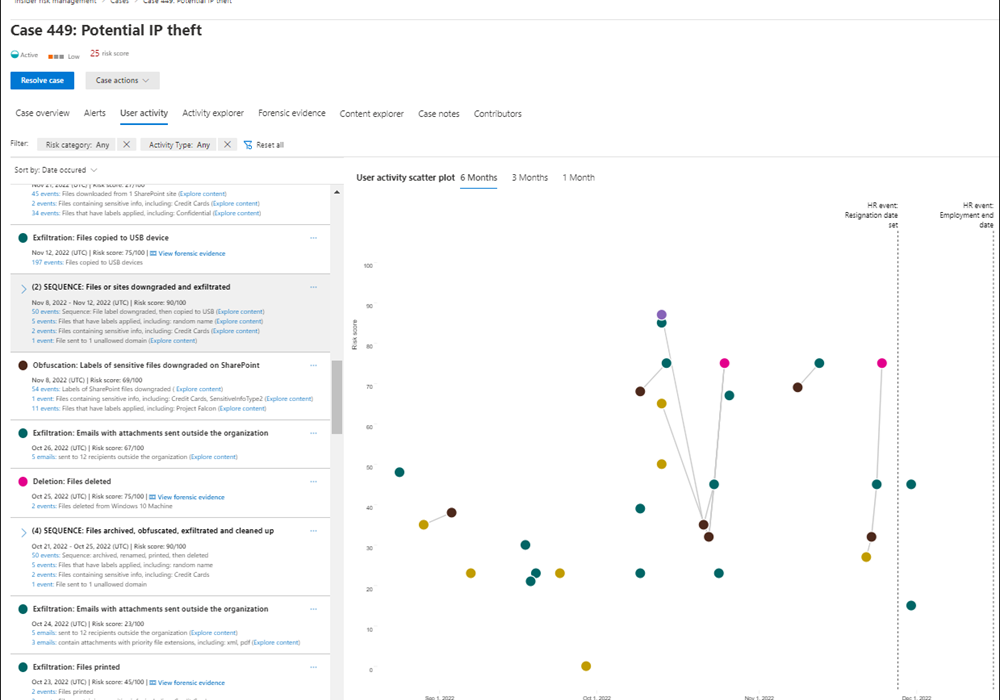
Insider Risk Management moves beyond reactive security by using machine learning to detect anomalous patterns of activity. It leverages signals from across Microsoft 365, including file activity, communications, and HR system data, to identify potential risks. The solution is built with privacy in mind, offering features like pseudonymization to protect user identities during the initial investigation phase. The goal is not to spy on employees but to identify high-risk behaviors that deviate from the norm, such as a user downloading an unusual number of files before their resignation date.
The Investigation Workflow
The solution follows a structured workflow: policies are configured to define risky activities, which generate alerts. These alerts are then triaged and, if necessary, escalated into a case for deeper investigation. This process allows security and compliance teams to collaborate with HR and legal departments to manage risk effectively.
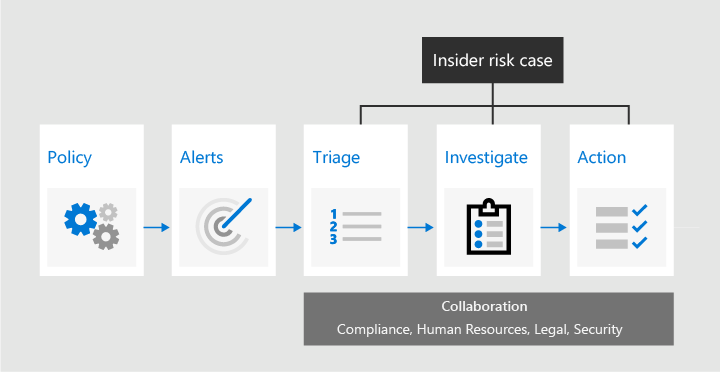
Policy templates make it easy to get started. For example, the **”Data theft by departing users”** template uses signals from an organization’s HR system (via the Microsoft 365 HR connector) to automatically begin monitoring users who have given their notice. The investigation dashboard provides a rich, contextual view of a user’s activities over time, correlating events like file downloads, label downgrades, and emails to external domains with HR events like a resignation announcement. This allows investigators to quickly understand the full story behind an alert.
4. Microsoft Defender for Office 365: Fine-Tuning Your Defenses
Email remains the number one vector for cyberattacks, with approximately 90% of breaches starting with a phishing email. While all Microsoft 365 plans include basic email filtering, many organizations fail to enable and tune the advanced threat protection capabilities available in licenses like Microsoft 365 E5 or through add-ons. They either rely on the default settings or purchase a third-party secure email gateway, duplicating costs and missing the benefits of an integrated solution.
Moving Beyond Defaults with Preset Policies
The default security settings in Exchange Online Protection are designed to catch known, high-volume attacks but are not sufficient against sophisticated, targeted threats. Microsoft Defender for Office 365 provides a significant upgrade. To simplify deployment, Microsoft offers **preset security policies**—**Standard** and **Strict**. These templates are configured based on Microsoft’s extensive threat intelligence and are automatically updated as the threat landscape evolves. The **Standard** policy offers a strong baseline of protection suitable for most users, while the **Strict** policy provides more aggressive settings for high-risk users like executives and finance personnel. Using these presets is the fastest way to elevate your protection level beyond the default.
Activating Safe Links and Safe Attachments
Two of the most powerful features in Defender for Office 365 are **Safe Links** and **Safe Attachments**. When a user clicks a link in an email, Safe Links rewrites the URL and checks it against a list of malicious sites in real-time. If the site is deemed unsafe, the user is blocked from accessing it. This protects against phishing attacks where the malicious payload is hosted on a webpage.
Safe Attachments provides “;sandboxing” for email attachments. When an email with an attachment arrives, the attachment is opened and analyzed in a virtual environment to detect malicious behavior. If the file is found to be malicious, it is removed before it can reach the user’s inbox. This is critical for defending against zero-day malware and ransomware delivered via weaponized documents. These features extend beyond email to protect content shared in Microsoft Teams and other Office applications, providing consistent protection across collaboration tools.
5. Tenant Configuration Backup and Disaster Recovery
Perhaps the most critical and least understood security gap in Microsoft 365 is the lack of native backup for tenant configurations. While Microsoft ensures service uptime under its Shared Responsibility Model, **the customer is responsible for protecting their own data and configurations**. Most organizations back up their data (emails, files) but completely neglect the thousands of settings that define their security posture and operational structure.
The Critical Configuration Blind Spot
Your tenant configurations are the blueprint of your digital workplace. They include all your security policies, such as **Conditional Access rules, MFA settings, DLP policies, and Intune device compliance rules**. They also include operational settings like mail flow rules, SharePoint site permissions, and Teams guest access controls. If these configurations are maliciously or accidentally deleted, your security architecture collapses instantly. Restoring them manually can take weeks or even be impossible, leading to catastrophic business downtime and massive security exposure.
This is not a hypothetical risk. A compromised Global Administrator can wipe out your entire security framework in minutes. One financial firm reportedly failed an audit because it had **”no meaningful way to restore configurations after a disaster.”** Relying on screenshots or manual documentation is not a scalable or reliable recovery strategy.
Implementing a Recovery Strategy
Because Microsoft does not offer a native, comprehensive tenant configuration backup solution, organizations must take proactive steps. The first line of defense is prevention: implement PIM to limit privileged access and configure alerts for any changes to critical policies like Conditional Access. For recovery, organizations must look to third-party tools specifically designed for this purpose. These solutions can take automated snapshots of all your tenant configurations—across Entra ID, Intune, Purview, Exchange, and more—and provide a fast, automated way to restore them to a known-good state. Integrating a configuration backup solution into your disaster recovery plan is not just a best practice; it is an essential component of true cyber resilience.